
Colour Theme and Site Appearance
Can I select a different colour theme?
Yes!
The chosen colour replaces Oxford Blue across headers, navigation, buttons, accordions, listings, cards, and other elements. Banners use fixed colours regardless of the theme. The default is Oxford Blue (#002147). Available colours are a subset of the Oxford brand palette that pass accessibility contrast checks.
How to select a different colour theme for a Fresco site
Within Fresco there is the option to change the colour theme for your site.
To select a colour theme for a Fresco site, follow these steps:
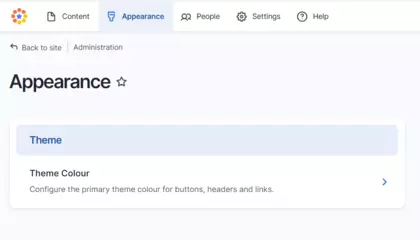
- Navigate to the Admin Ribbon at the top of the page and select Appearance
- Click on Theme
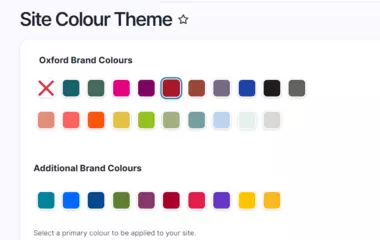
- Choose a primary colour from the picker. You can select from Oxford Brand Colours, Additional Brand Colours (department-specific), or a group of lighter brand colours
Only Site Administrators and the Site Owner have the permissions required to change the theme colour; Site Managers and other roles cannot. The selected colour will replace Oxford Blue across various site elements, including headers, navigation dropdowns, buttons, and accordions.
Step 1
Select Appearance in the top ribbon.
and click on Theme.
Step 2
The next screen will show the colour themes that can be selected.
Click on your chosen colour.
Save at the bottom of the page.
Which site elements change when I select a new theme?
Selecting a new site-wide colour theme replaces the default Oxford Blue with your chosen primary colour across the following elements:
- Headers: Backgrounds for Department and Microsite header variants
- Navigation and Search: Navigation dropdowns, the search dropdown, and the search box border
- Buttons: All buttons across the site, including those in the footer and on cards, with the exception of buttons within Banner components
- Footer: The copyright bar, line separator, and footnote bar
- Listings and Cards: Listing filters, filter tags, the taxonomy elements on cards, and listing taxonomy filter dropdown arrows
- Interactive Components: Accordion open/close icons, pagination controls, and Media Gallery navigation arrows
- Text Elements: Bullet points, numbered list markers, and quotation marks or borders (specifically for the "no image" and "small image" styles)
- Metadata: Icons, prefixes, and text within the Metadata component inherit the theme if a dark colour palette is selected
Banner Components
If you select another colour theme for your site, when the theme colour is anything other than the default Oxford blue, the banner text background automatically defaults to black in Fresco.
The banner display can be the Oxford blue, but the theme colour must be reverted to the standard Oxford blue in the site settings. Once this is done, the banner text background will update accordingly.
Example of a site that has selected 'Oxford Red' as a Site Theme
The Banner will change to black as opposed to the Oxford Blue.
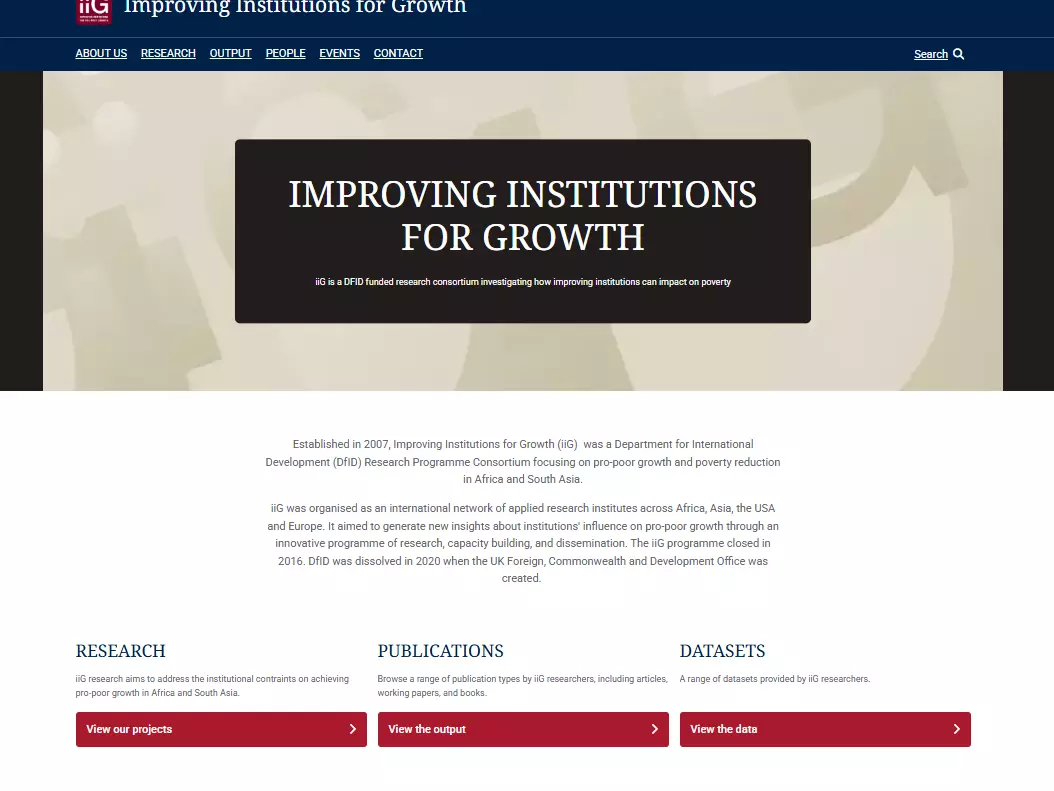
In this instance the theme colour selected is Oxford Red, so this will appear at the bottom of the footer and the buttons will also change to red.