Sharing Attachments on Fresco
As you transition from Mosaic to Fresco, one of the things you will need to make sure is your content has all migrated across correctly, and this includes any attachment you have on your site.
Here we run through how to add attachments to the site and at the end how you can get the correct url for each document. If your document is already on the website you can skip down to step #4.
This is a step that will be necessary during migration to make sure the documents on the website do not point to your Mosaic website, which will be decommissioned once your Fresco site has gone live. So all links to your resources must be to where they can be found on the Fresco website.
Step 1
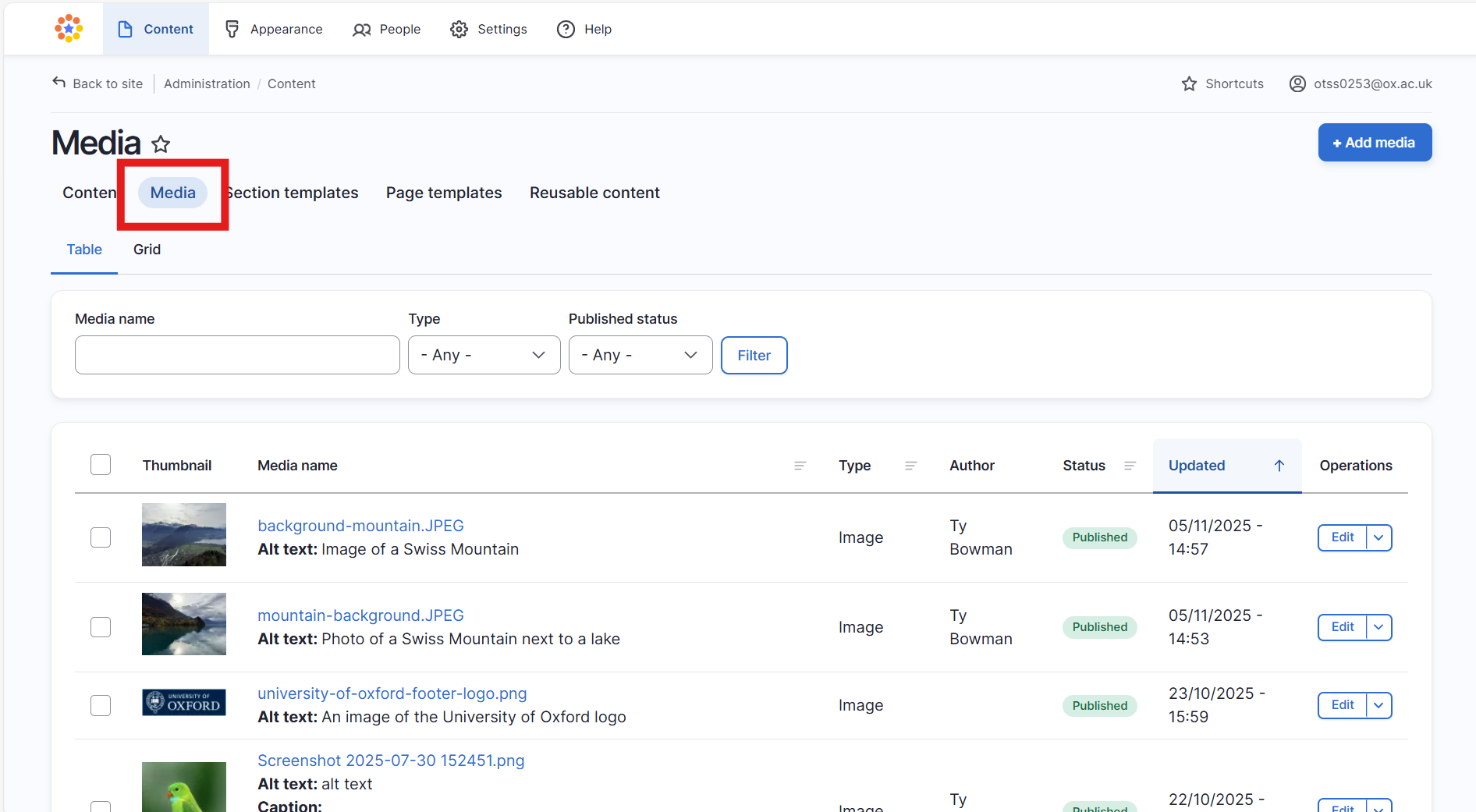
In the content part of your Fresco CMS, ‘select media’
Step 2
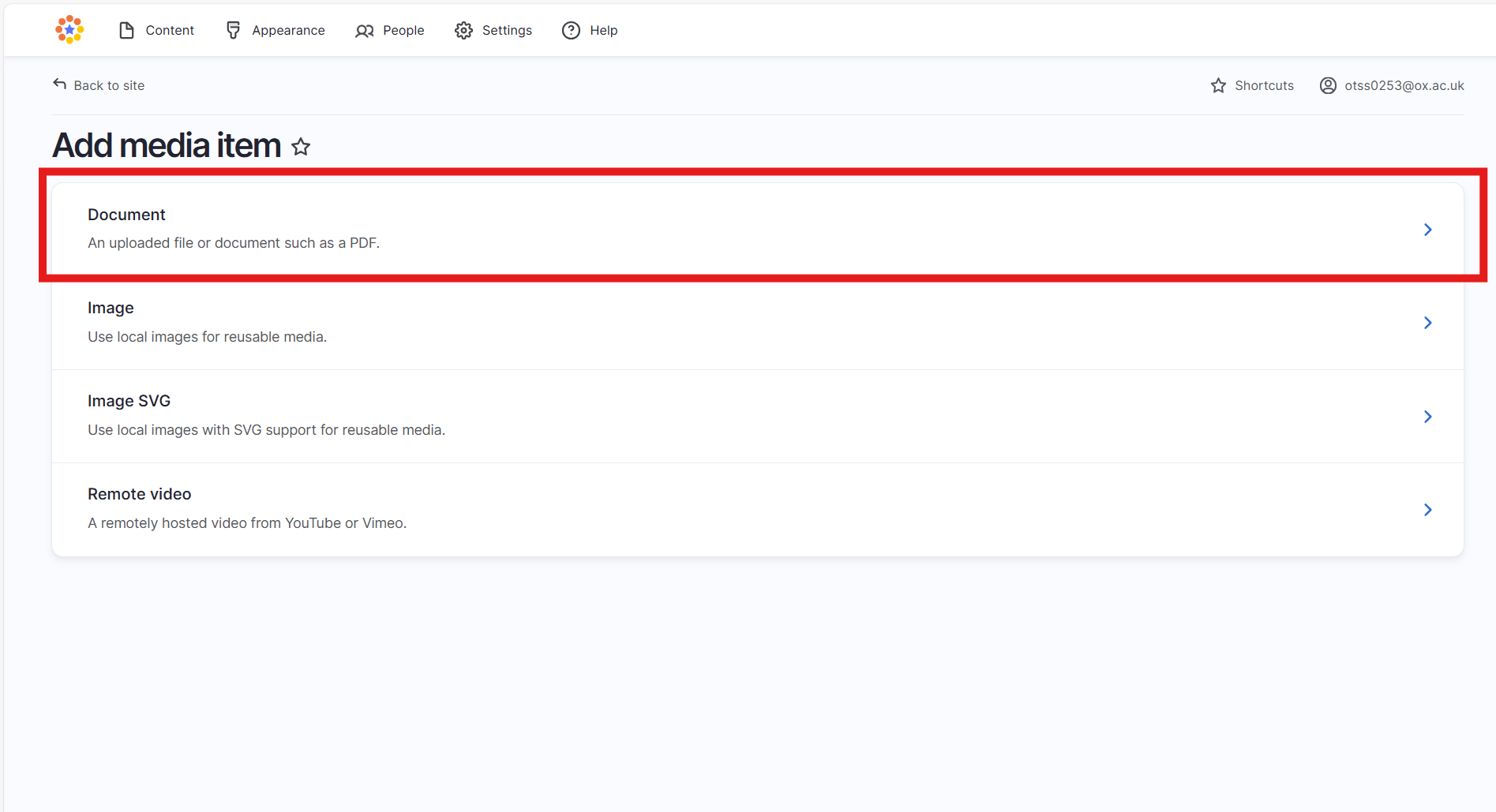
Click on the blue button ‘Add Media’ and on the ‘Add media item’ page select ‘Document’ in the list of items.
Step 3
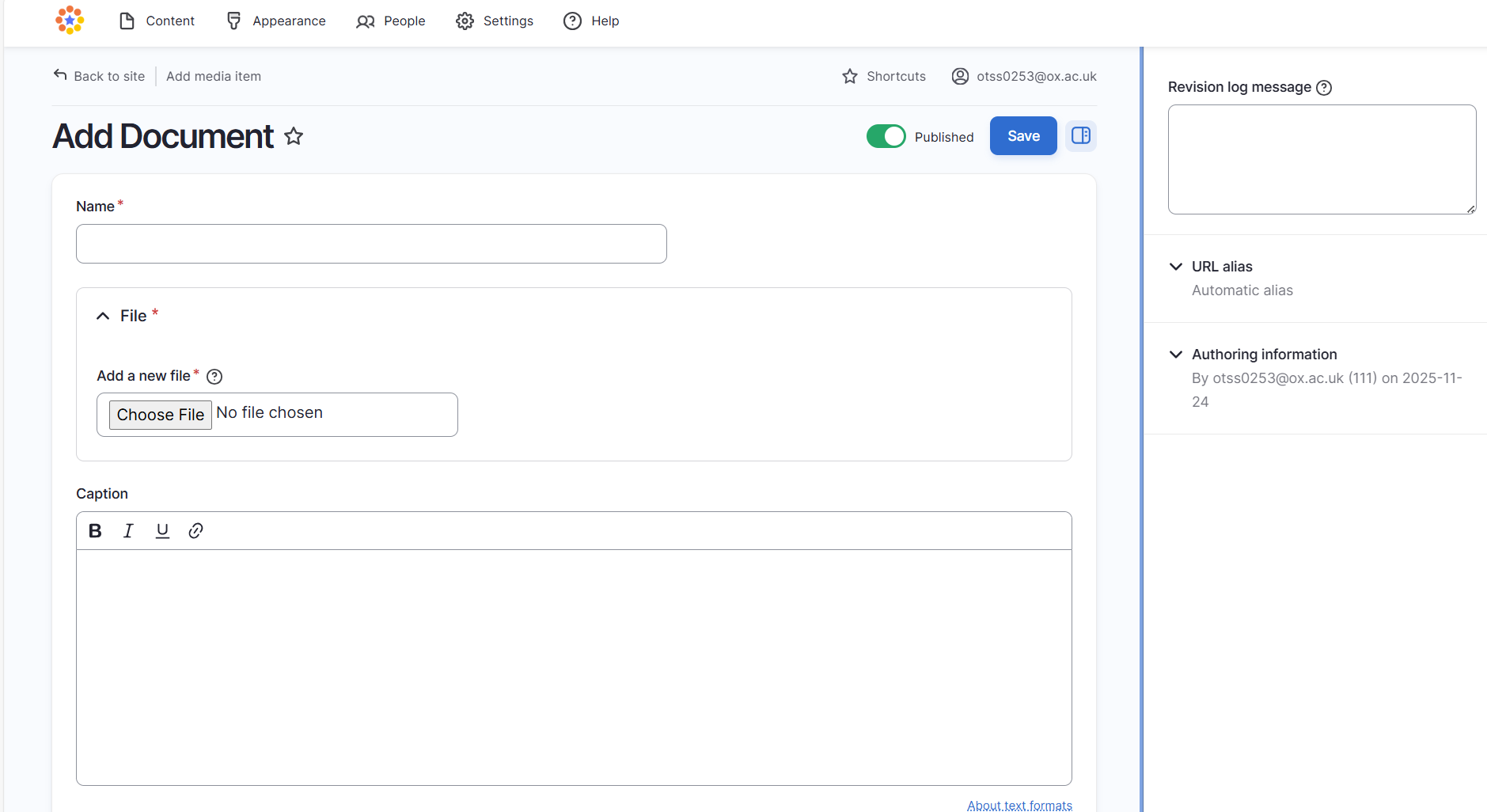
On the ‘Add Document’ page, you will need to choose the file you are uploading and give the document an appropriate name. Once your document is uploaded, make sure it is set to published and then save this.
Files must have descriptive names and be in accessible formats, such as tagged PDFs
Step 4
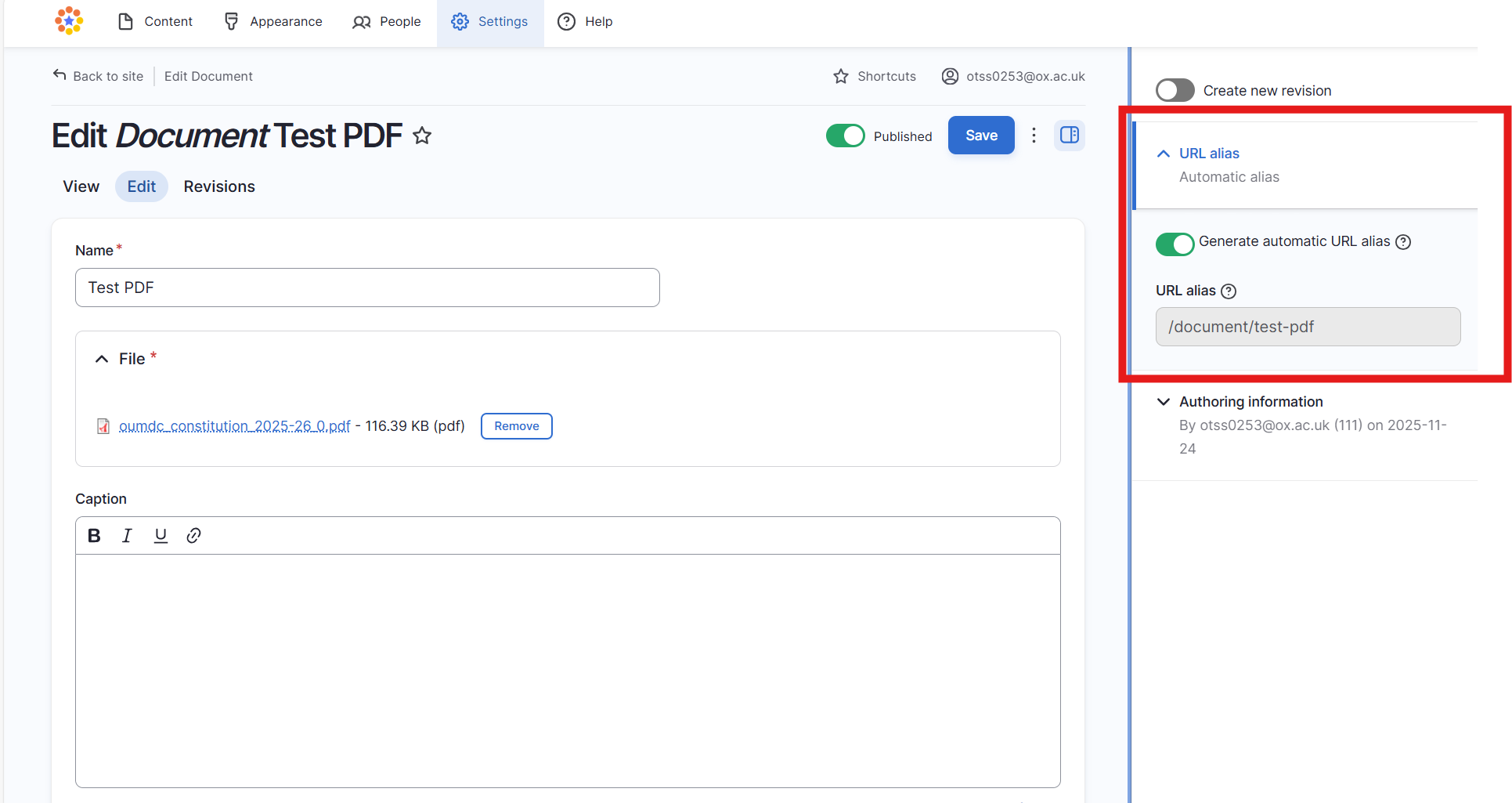
On the Document page you’ll see a URL alias for your document. This is what you will use to link to internal documents loaded onto your Fresco site.