
How to archive and delete content in Mosaic
If you have content that is out of date, no longer relevant or not required on your new migrated site, you can delete or archive it on Mosaic before migrating.
To help you identify this content, we recommend you complete a content audit before your migration. Read more about content audits.
If you’re not sure whether your content should be deleted, archived or kept, we have more information on the Toolkit. Go to the Deleting and Archiving page.
To do disable shared content in Mosaic, go to the Sharing Content tab. This will display a list of other sites that your content is being shared to.
Un-tick the 'Allow another site to make copies of shared content' checkbox and remove the Site IDs. Then save the Site Settings to stop content sharing.
It is important to remove or disable shared content before migration. Where applicable, you will need to inform any other site(s) or site owner(s) before disabling shared content on their site.
For more information, visit the Content Sharing page on Mosaic. Read Sharing and copying content
Archiving content from Mosaic
Printing to PDF
From your webpage:
- Open the Print option. There are three ways to do this:
- Use the keyboard shortcut. (Ctrl+P for Windows or Cmd+P for Mac).
- Right-click with your mouse on the webpage, and click Print.
- Click the three dots on browser window (these are usually in the top right-hand corner) and scroll down to Print.
- In the Printer field, from the dropdown select Print to PDF.
- Click Print.
HTTrack
HTTrack is a tool that allows you to create a copy of your website. HTTrack is not owned or managed by the University.
Watch this video on how to use it.
Deleting content in Mosaic
From the Edit page:
- Click Edit page.
- Click Manage Content, in the top-left of the screen.
- Select pages to you want to delete. You can do this either individually or in bulk.
- To delete a single page, from the Operations column, click the red delete button.
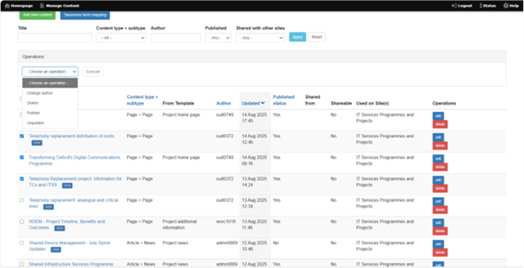
- To delete multiple pages, select the pages you want to delete (by selecting the tick box for each relevant page) and then select Delete from the Choose an operation drop-down. (Screenshot below)
Tip: You can also sort and filter to narrow down the pages you want to deal with.
Important information about content retention
We recommend content owners take into account any data retention requirements pertaining to their content, before deleting it.
There is no central/top-down source of guidance on for how long content should be kept. Please refer to any local guidance as required.
If people would like to consider how often they review their content, some high-level guidance is available in the University’s Content Strategy.