Removing formatting from text
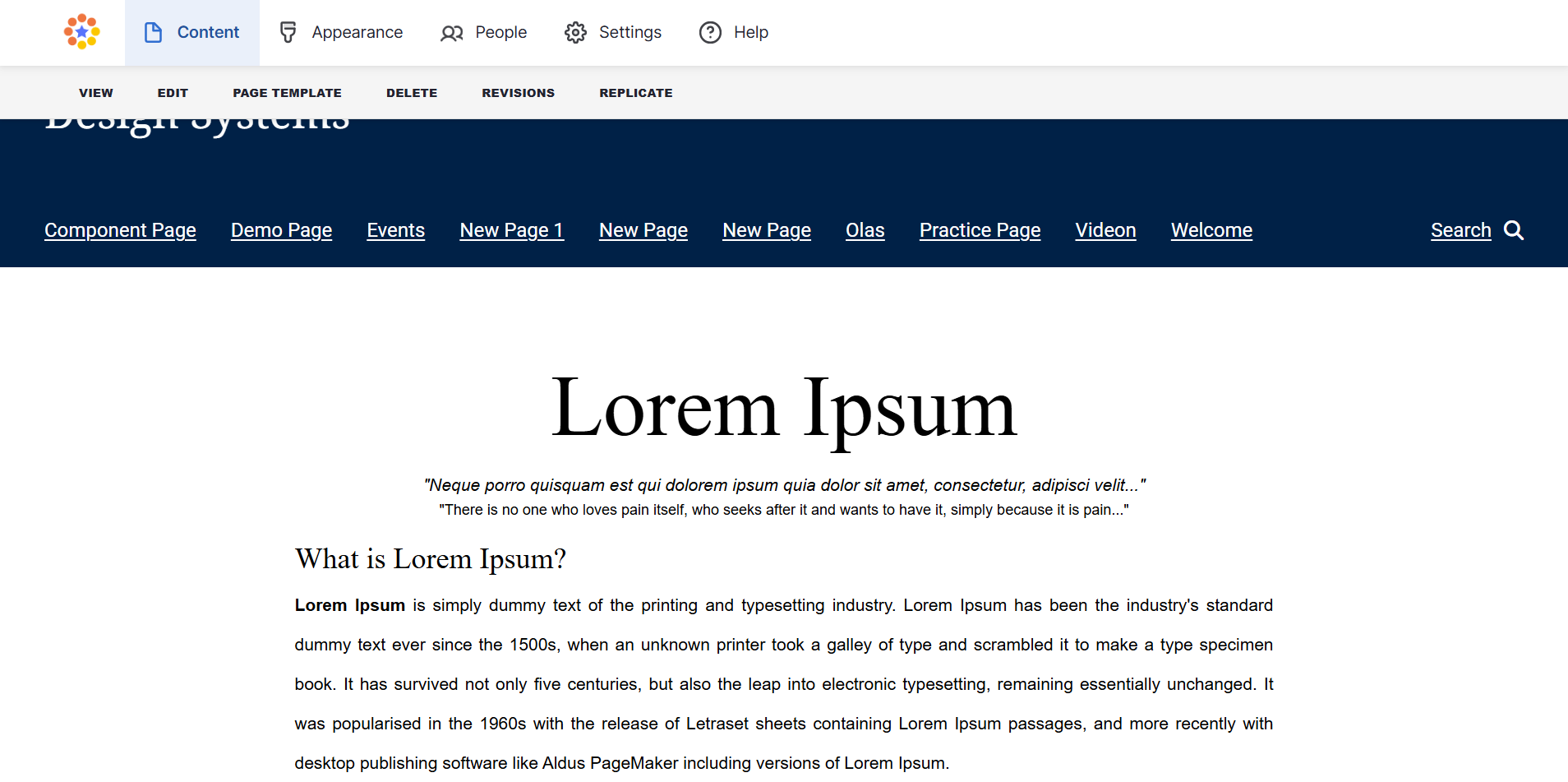
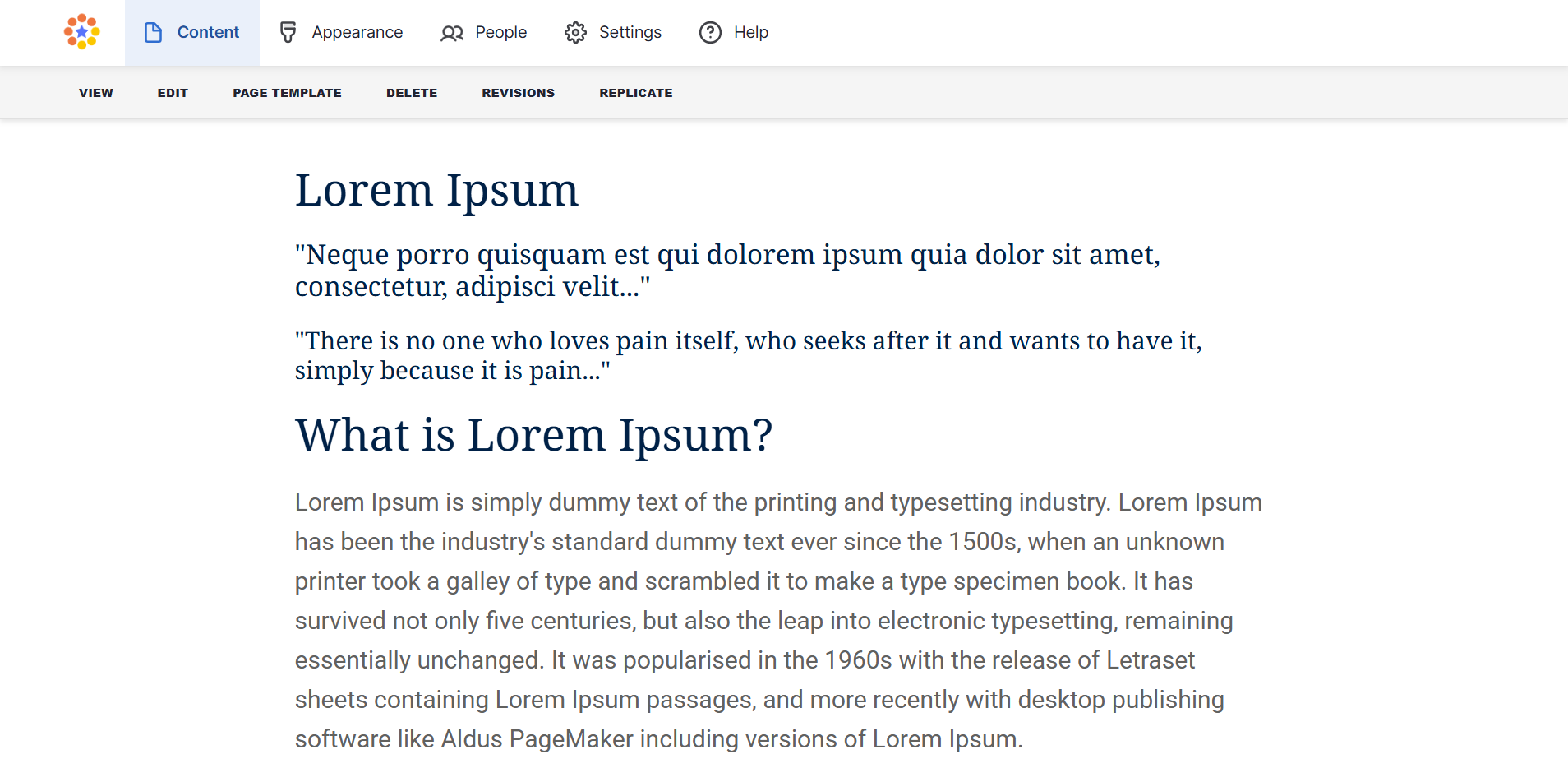
When you copy content from your previous website (e.g., Mosaic), hidden formatting comes with it. This can conflict with the new website’s styles and cause display issues such as inconsistent fonts or text sizes.
Step-by-step guide
Re-formatting existing text on a page
Step 1
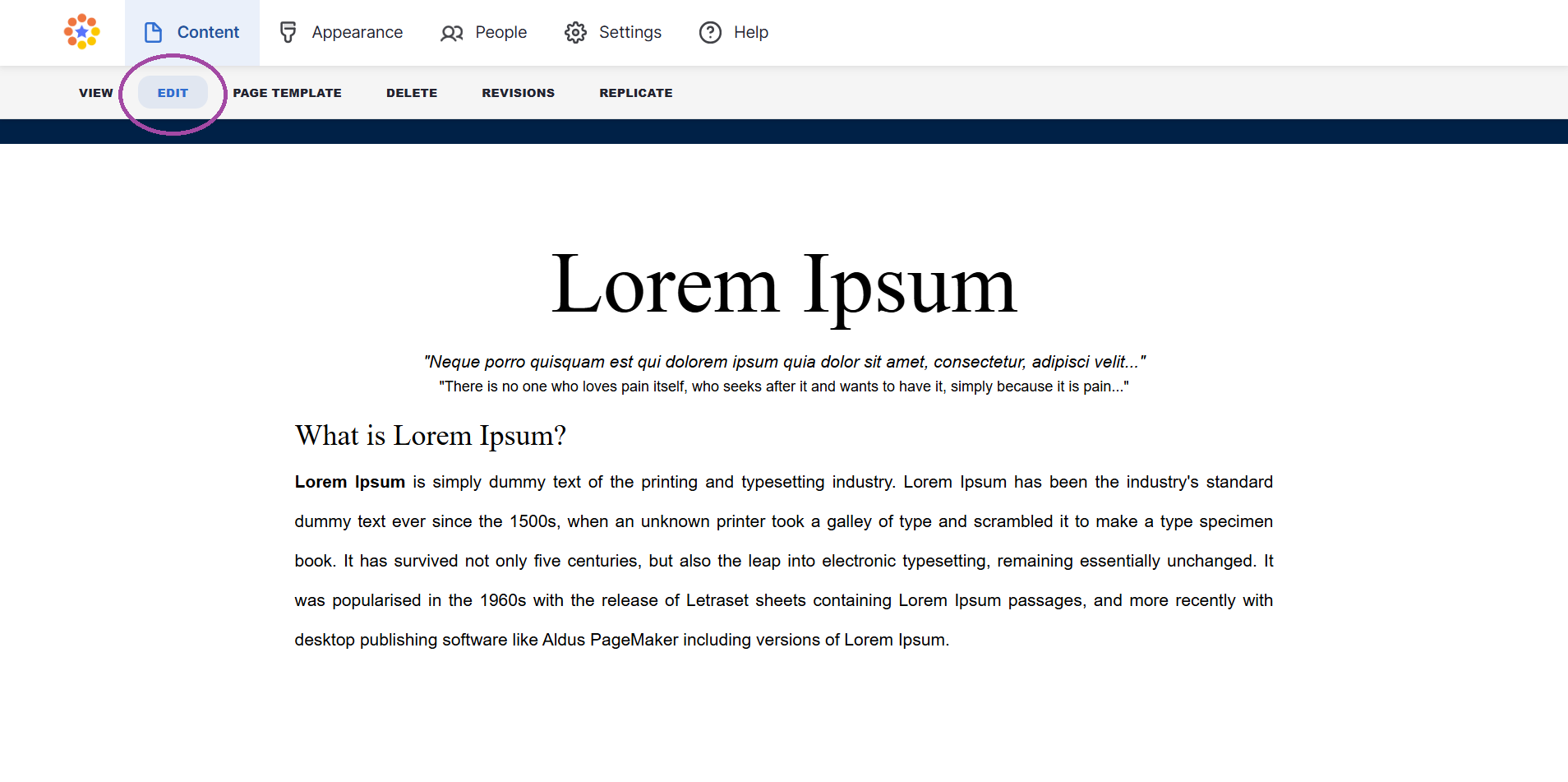
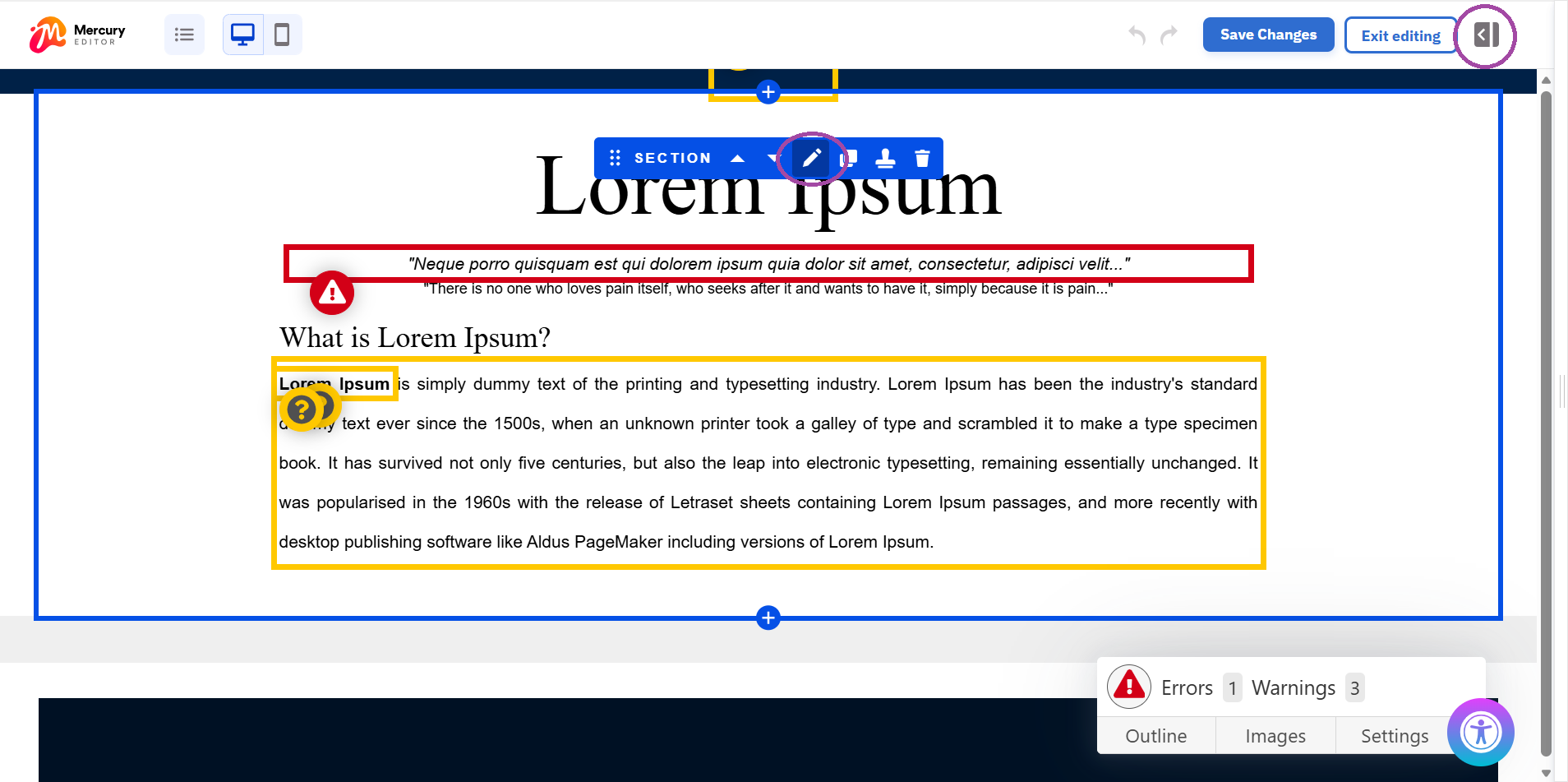
- Go to edit mode by clicking 'edit' in the admin ribbon
Step 2
- Select the text component which will bring up the toolbar
- Select the pencil icon in the toolbar
Step 3
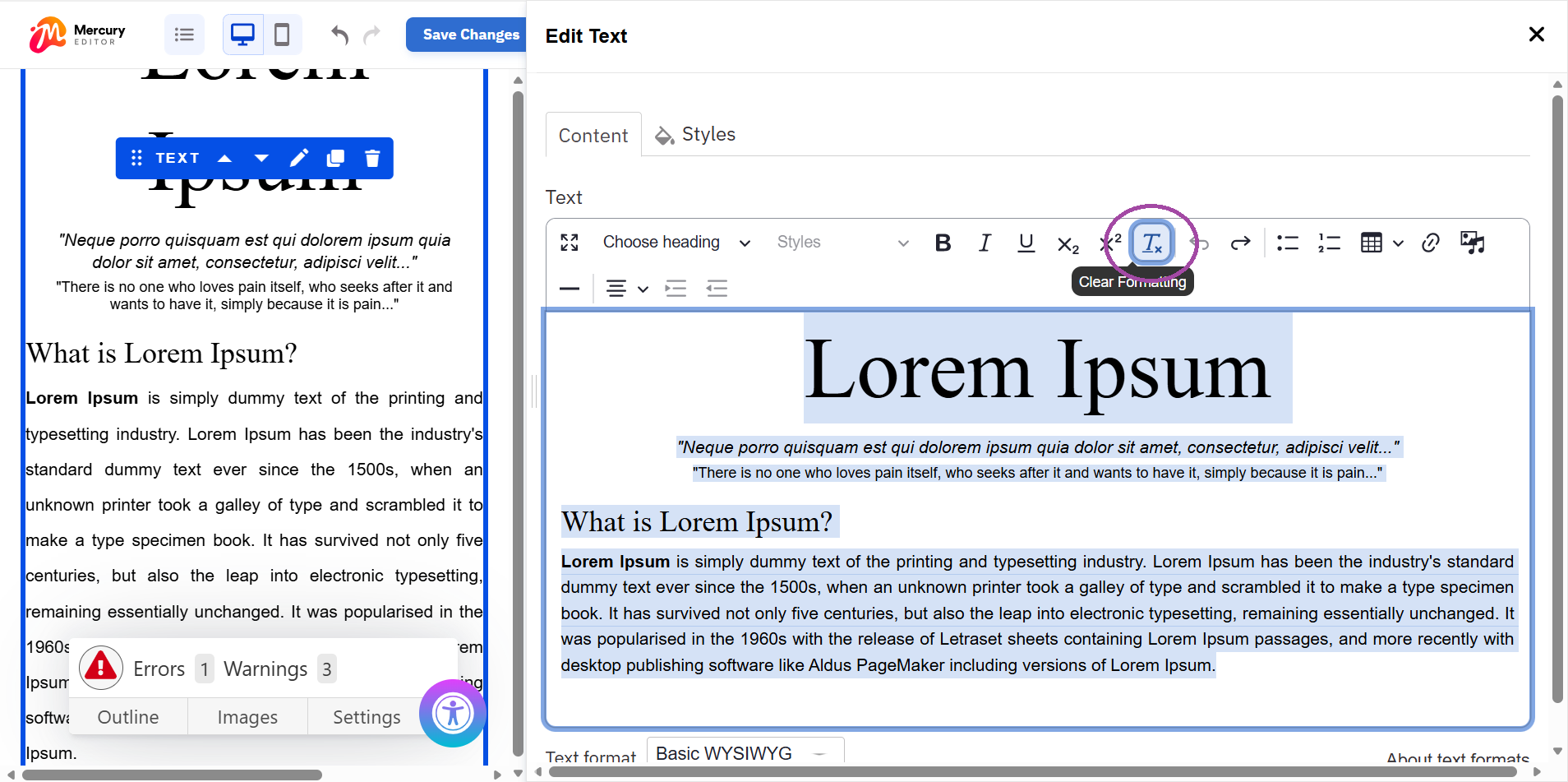
- In the right-hand editing bar, highlight the text that contains the unwanted formatting
- Click the Clear Formatting (Tx) icon in the toolbar to strip hidden inline styles
Step 4: if you need to re-apply styles to text (e.g., bold text)
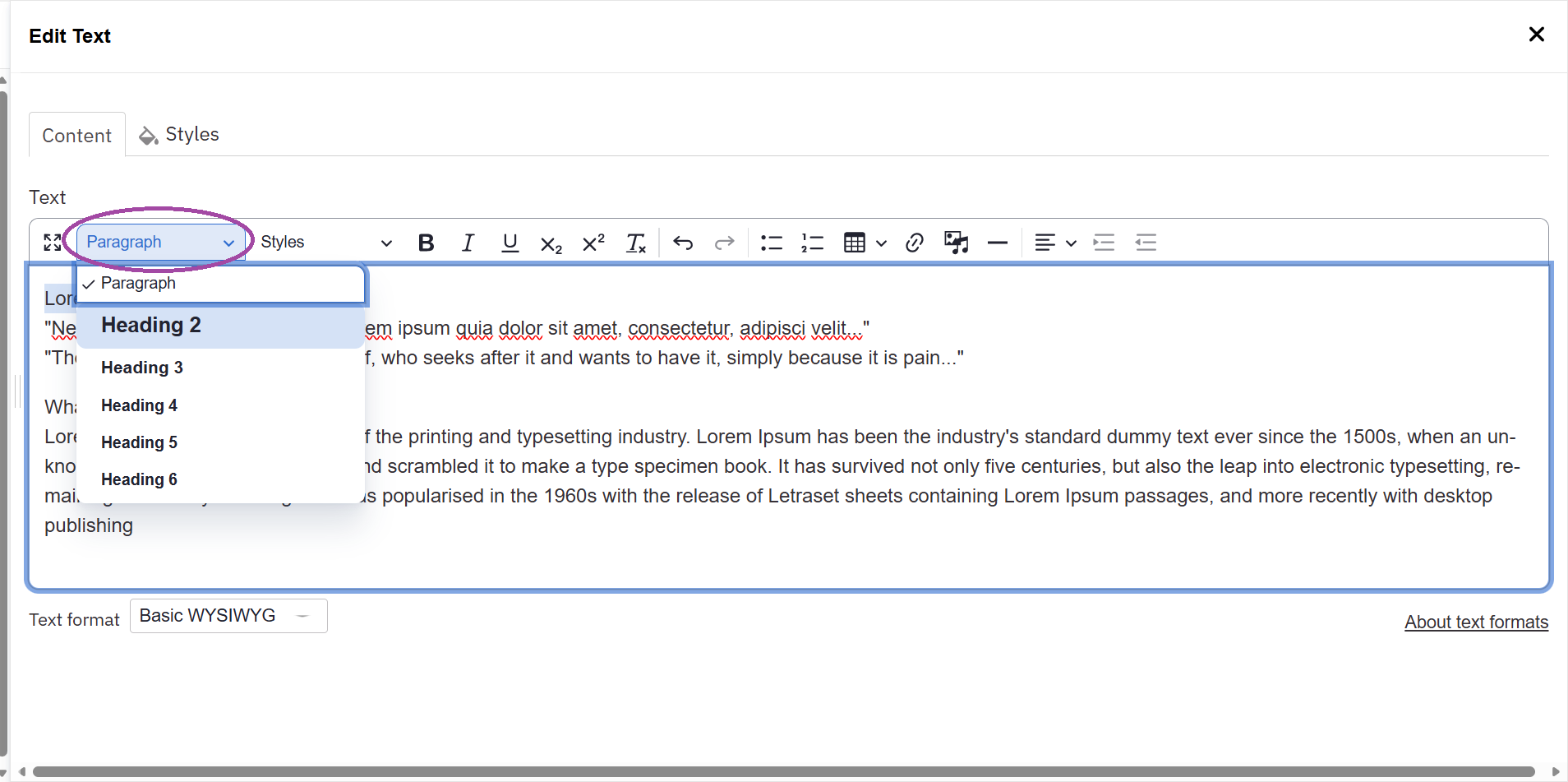
Once you have cleared formatting in the Text component, you can re-apply styles using the toolbar:
- Bold: Highlight the text and select the Bold icon
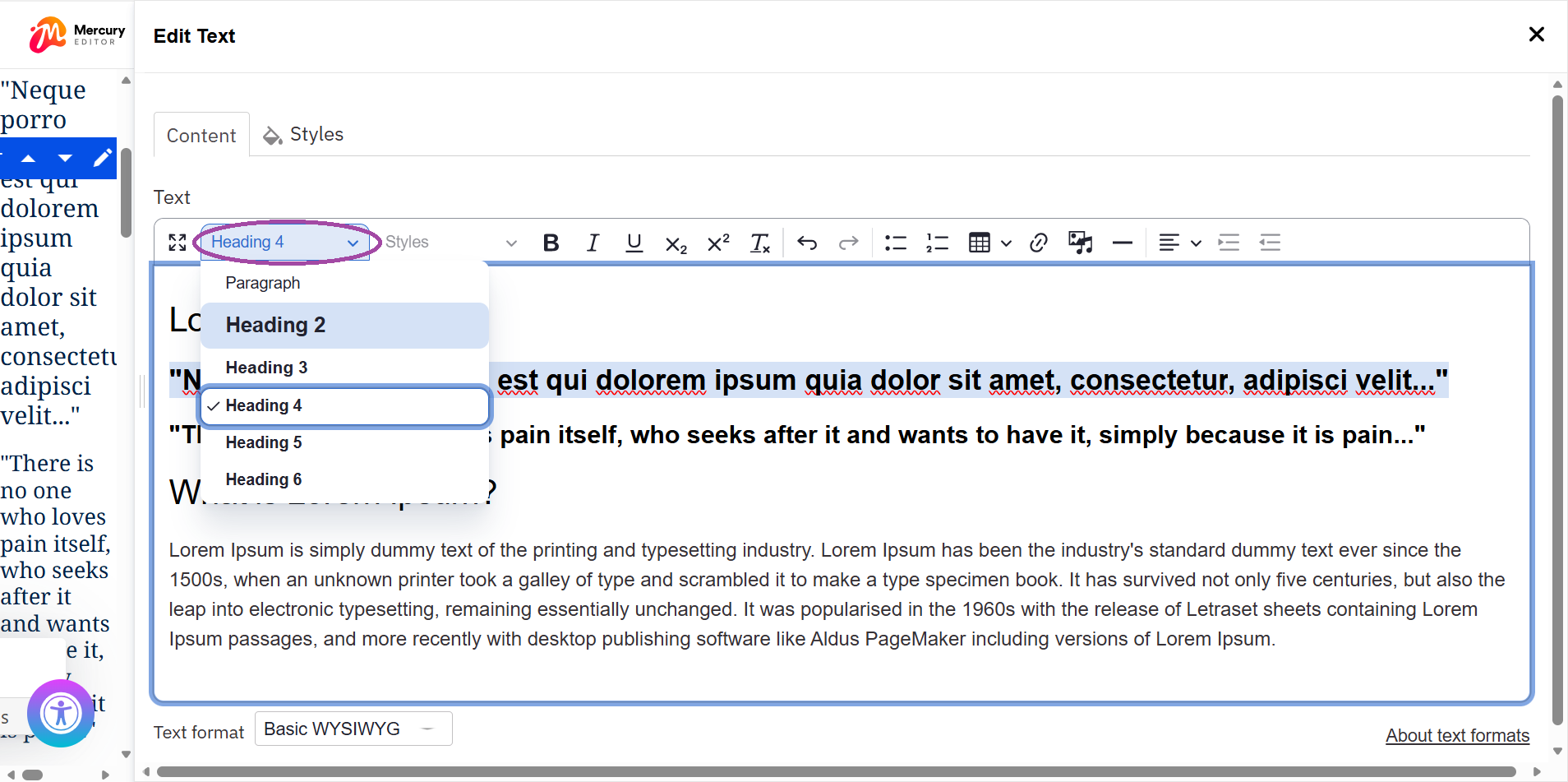
- Headings: Highlight the text and use the Paragraph dropdown to select the appropriate heading level, such as H2, H3, or H4
- Intro Text: Use the Intro paragraph style for lead text at the top of a page to apply a larger font size
Key Rules:
Do not use bold text as a substitute for actual headings - Maintain a logical hierarchy (e.g., H2 followed by H3) and ensure there is only one H1 per page, which is reserved for the page title
Re-formatting text which has been pasted onto a page
Step 1
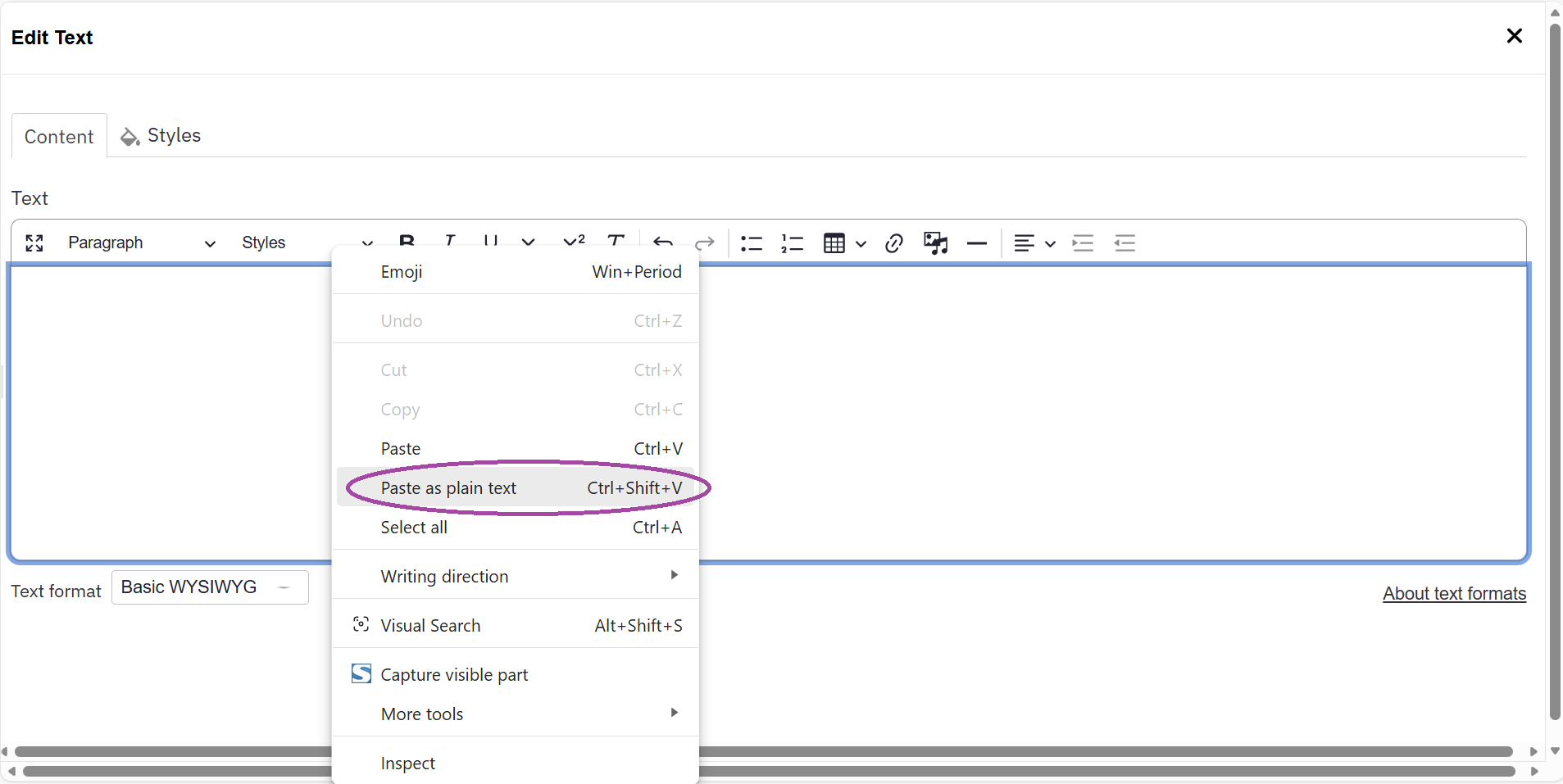
- Copy the text you would like to paste onto your new page
- Right click and select the 'paste as text option' to ensure that copied text has all formatting removed
If you need to re-apply styles to text (e.g., bold text): Repeat instructions from step 4 under the above section covering re-formatting existing text on a page