Creating a template
Page templates allow editors to quickly build consistent new pages by providing a reusable structure. They are particularly useful for maintaining uniformity across pages that require a repeatable format, such as creating researcher profiles using the "Person" content type.
Templates can be created to preserve either the full content, which includes placeholder text and guidance for other editors, or just the layout structure.
Step-by-step guide
Step 1
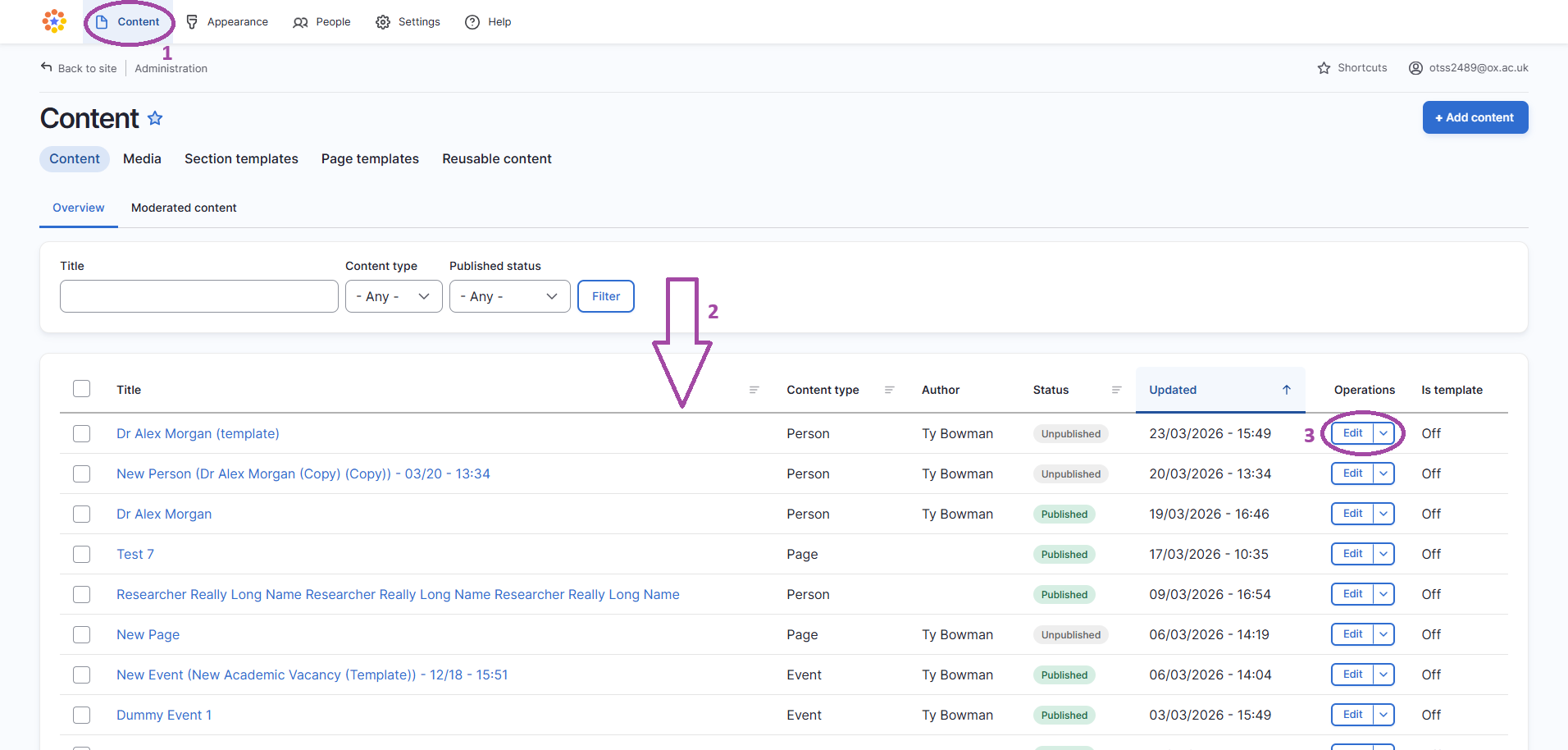
- Access your site
- Go to 'content'
- Locate the page you would like to make into a template
- Click 'edit' on the page you'd like to edit
Step 2
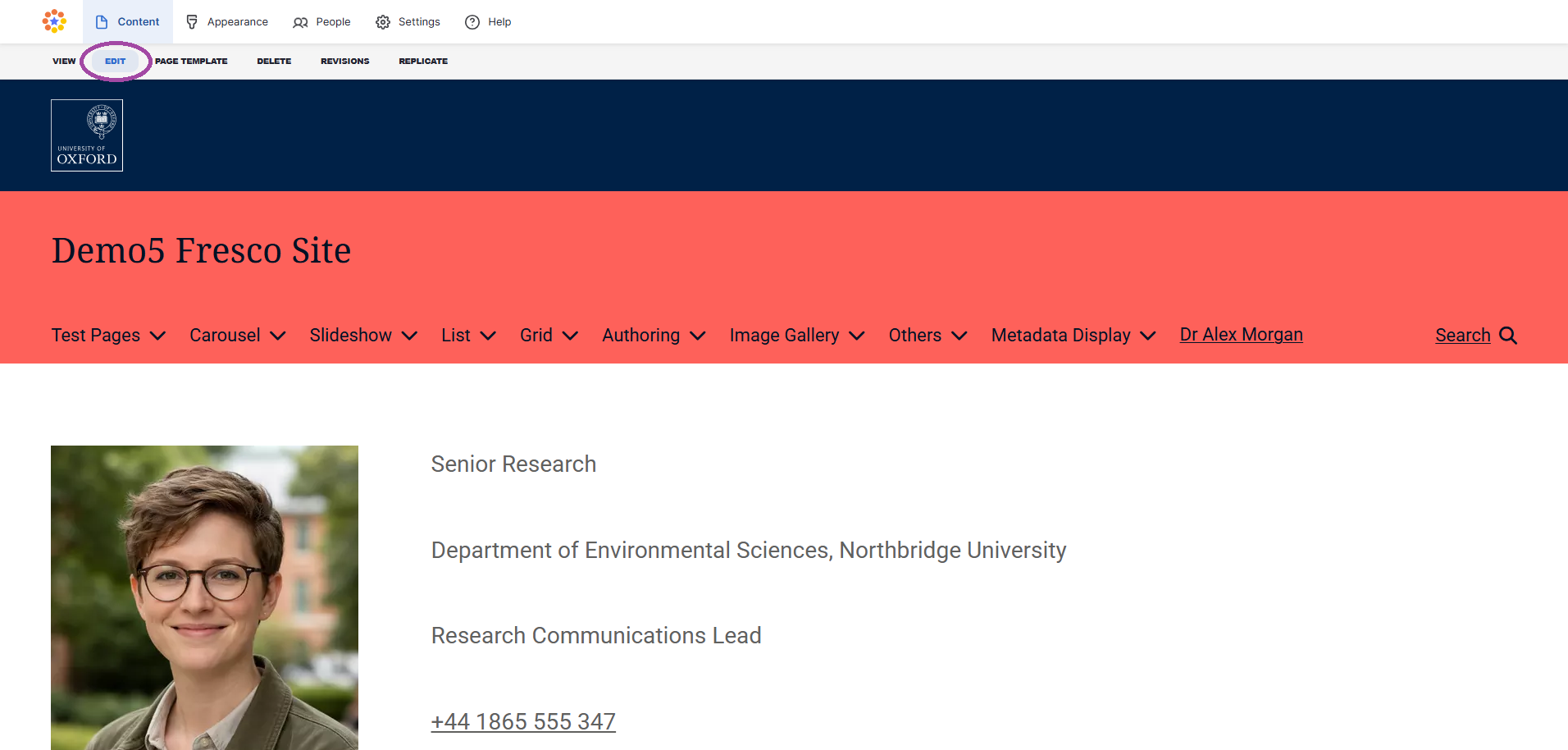
- Click 'edit' to open the right-hand sidebar in editing mode
Step 3
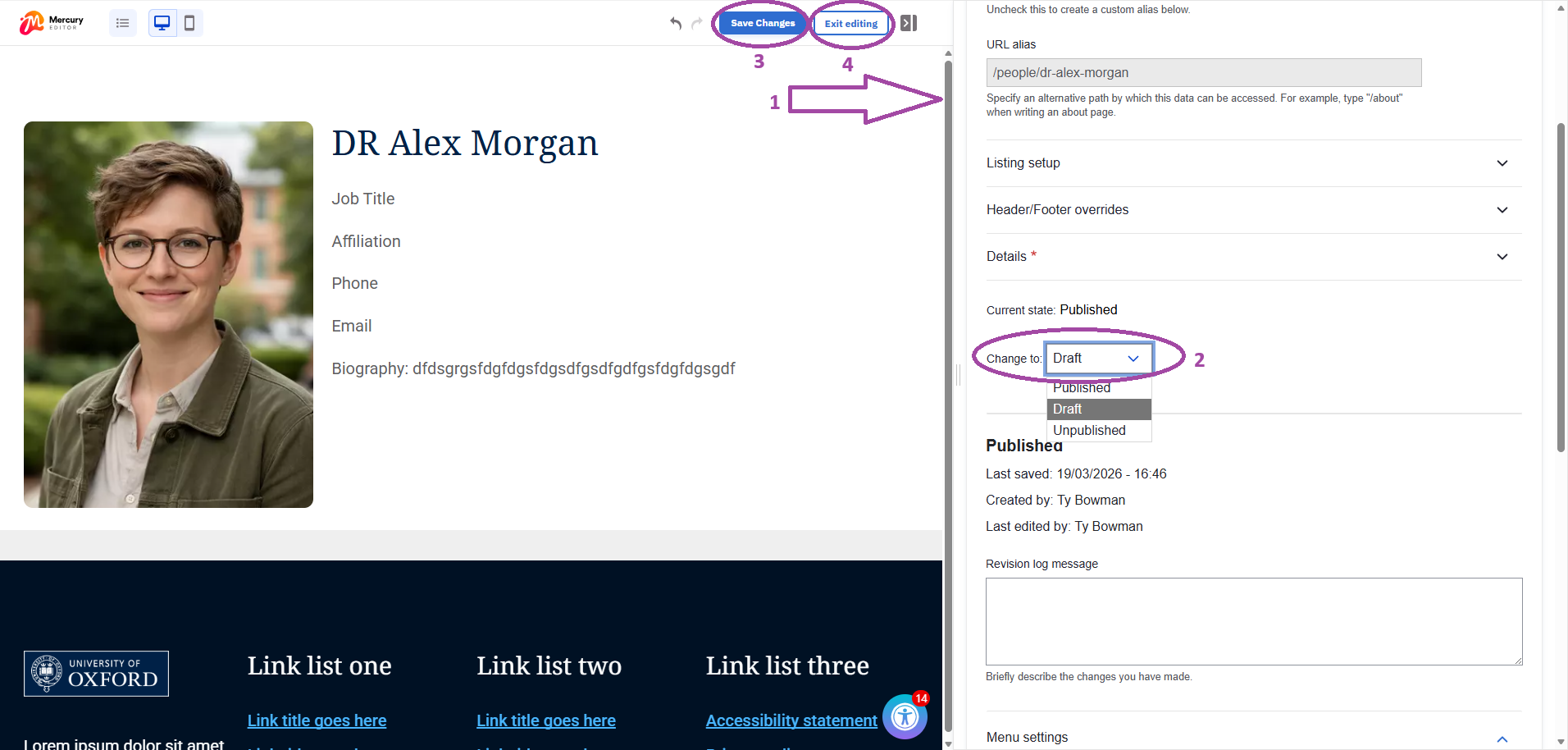
- In the right-hand sidebar under 'details', ensure that the page is not published (selected either draft or unpublished)
- Remember to 'save' the page before 'exit editing'
Note: You cannot turn pages which are published into templates so this step is crucial for creating a template.
Step 4
- Once you have exited editing mode, go to 'page template' in the admin ribbon
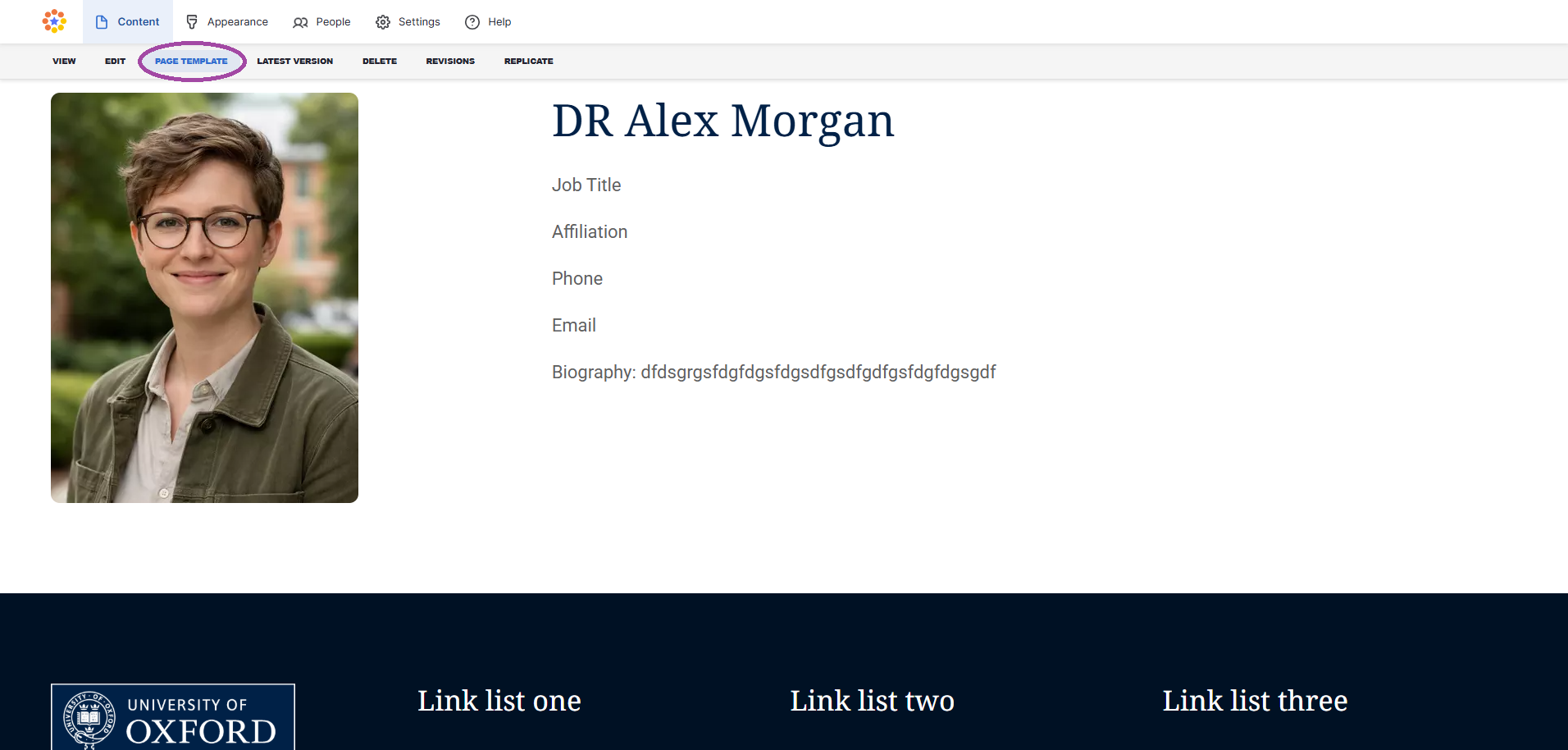
Step 5
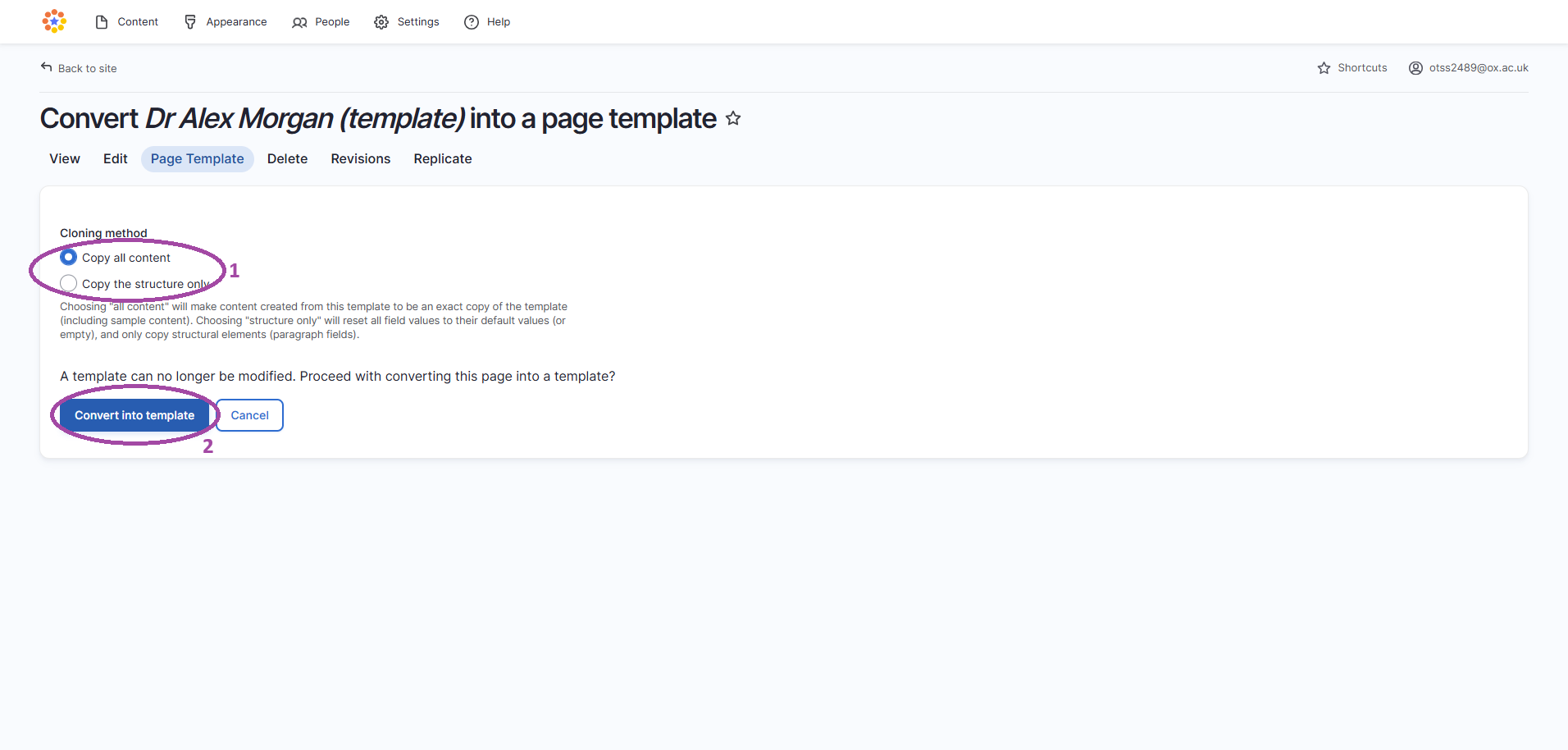
Choose one of the following options depending on your template requirements:
1) 'Copy all content' to keep placeholder text and guidance - useful for maintaining uniformity and providing instructions to help other editors replace placeholders with accurate information.
2) 'Copy structure only' to keep the layout without content - useful for setting up a reusable structure for pages that will feature entirely different information- Click 'convert to template'
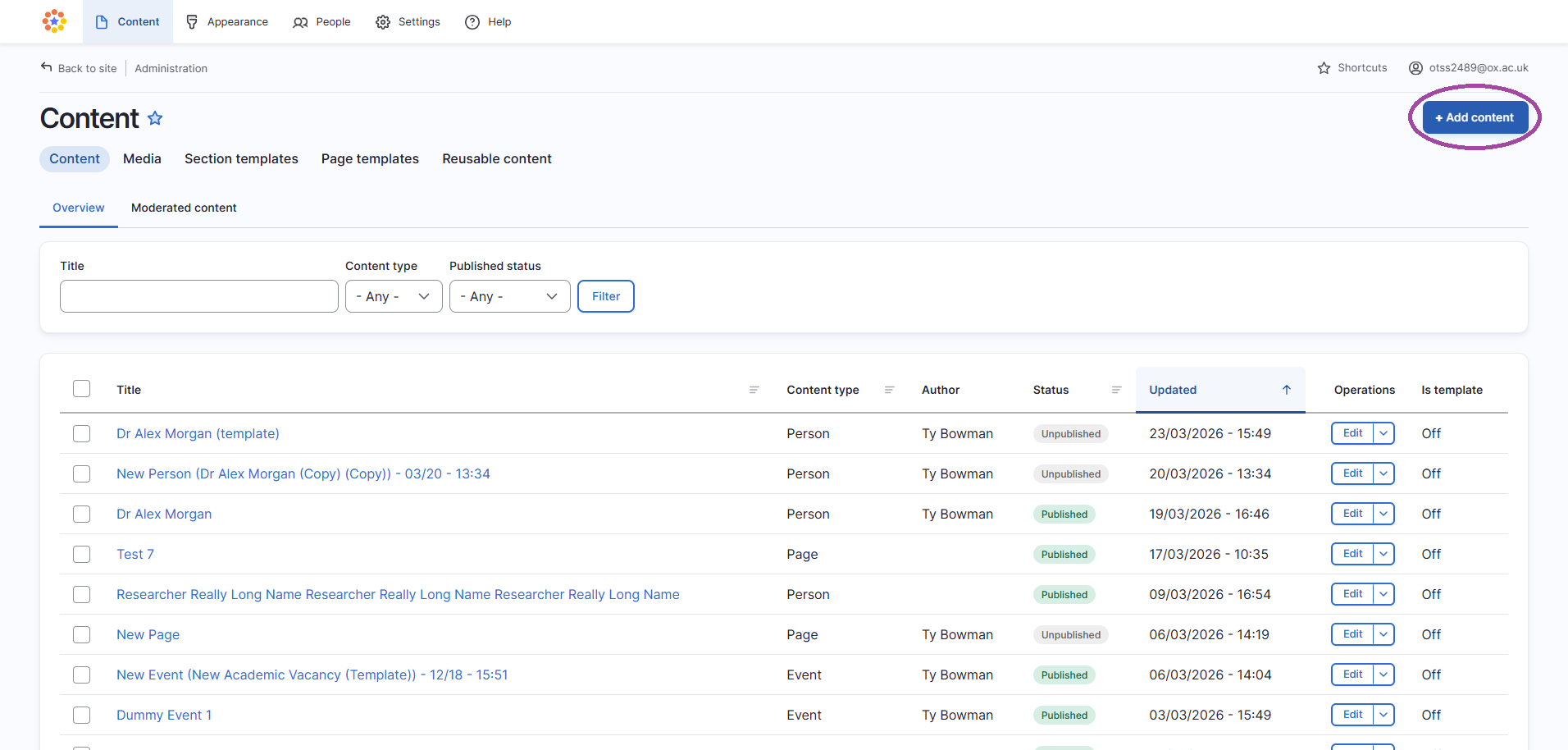
Step 6
- Click 'add content'
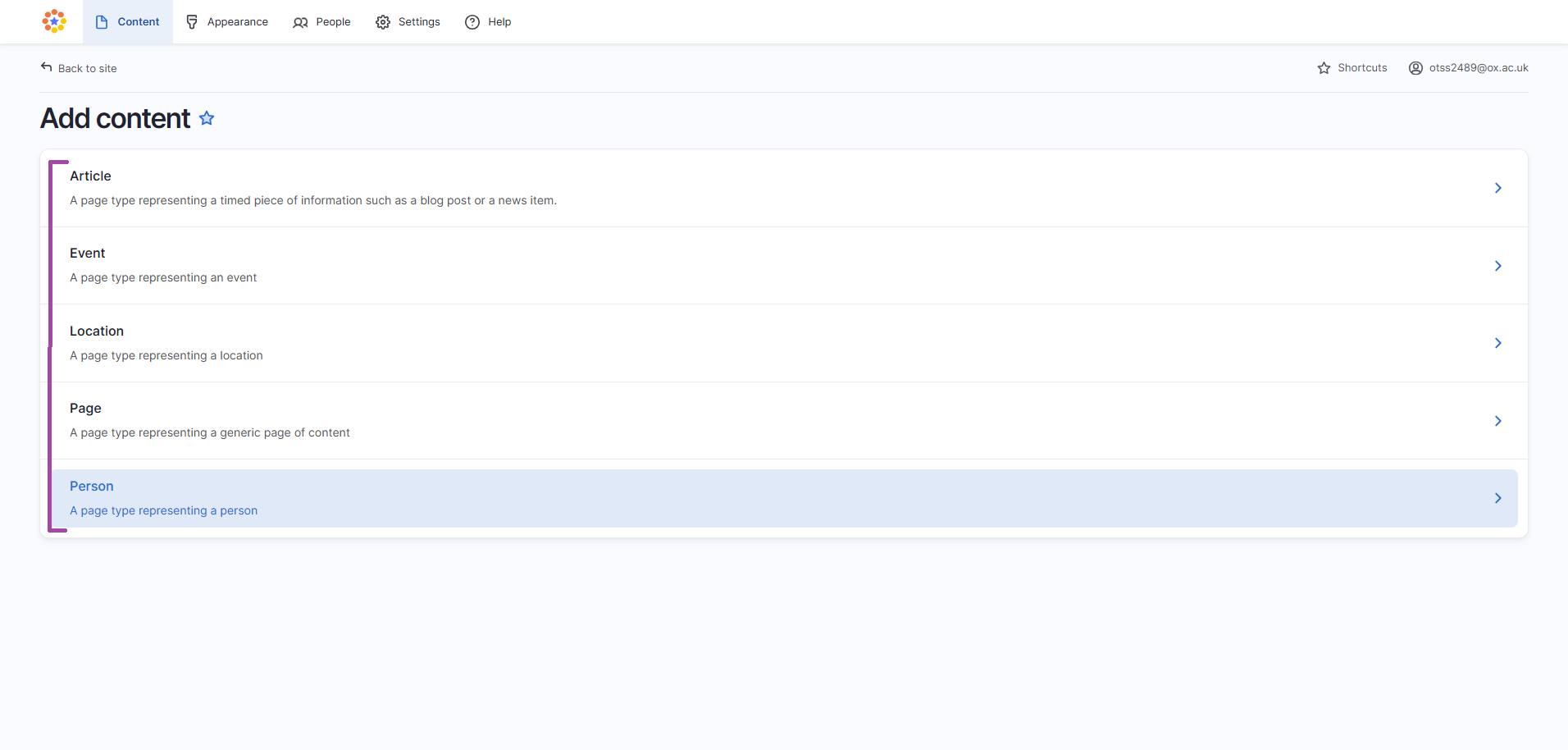
Step
- Select the content type you need
Note: Templates are specific to content types (for example: a people page can only be used as a template for other people pages but could not be used as a template for events pages).
Step 8
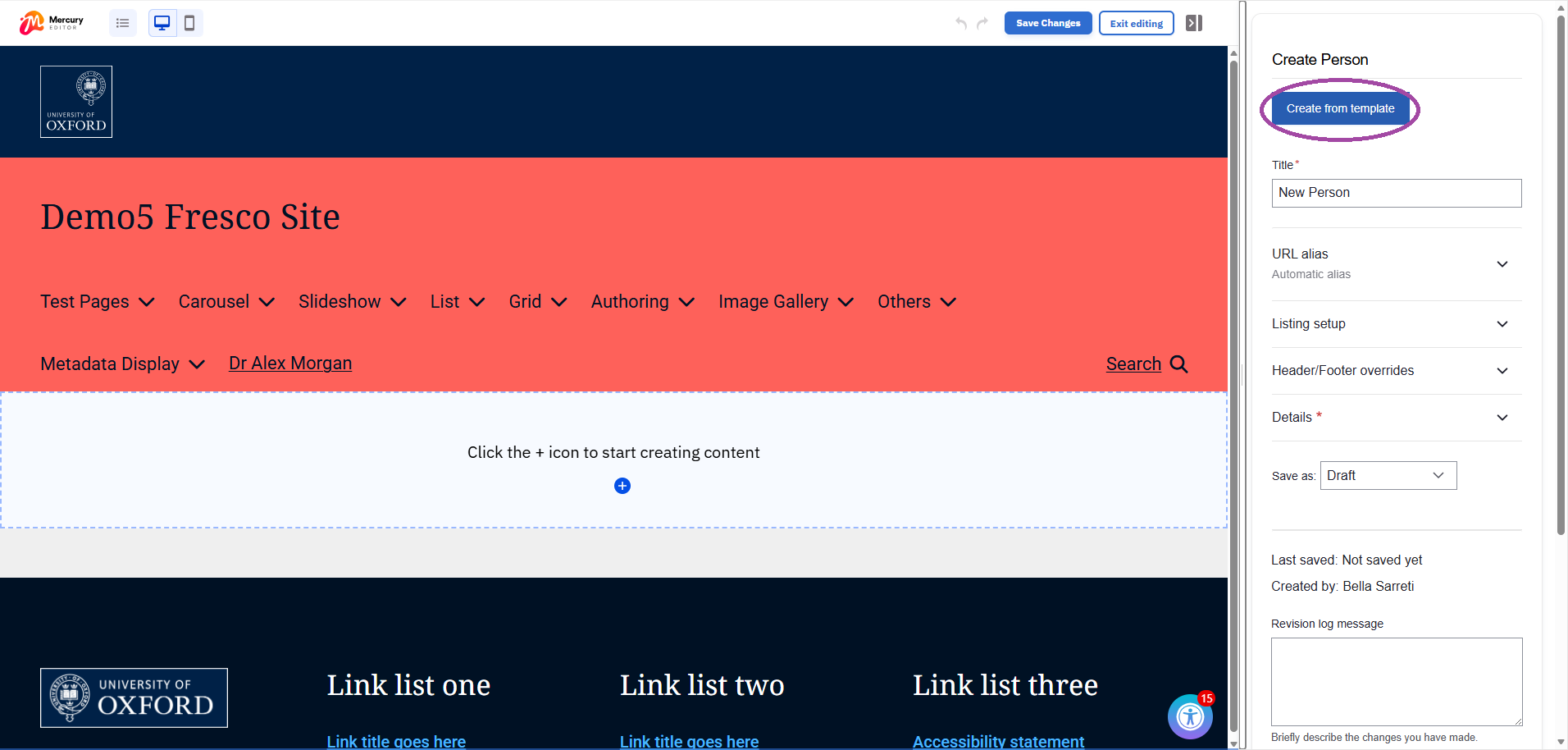
- Go to 'edit' in the admin ribbon to bring up the right-hand sidebar
- Click 'create from template'
Step 9
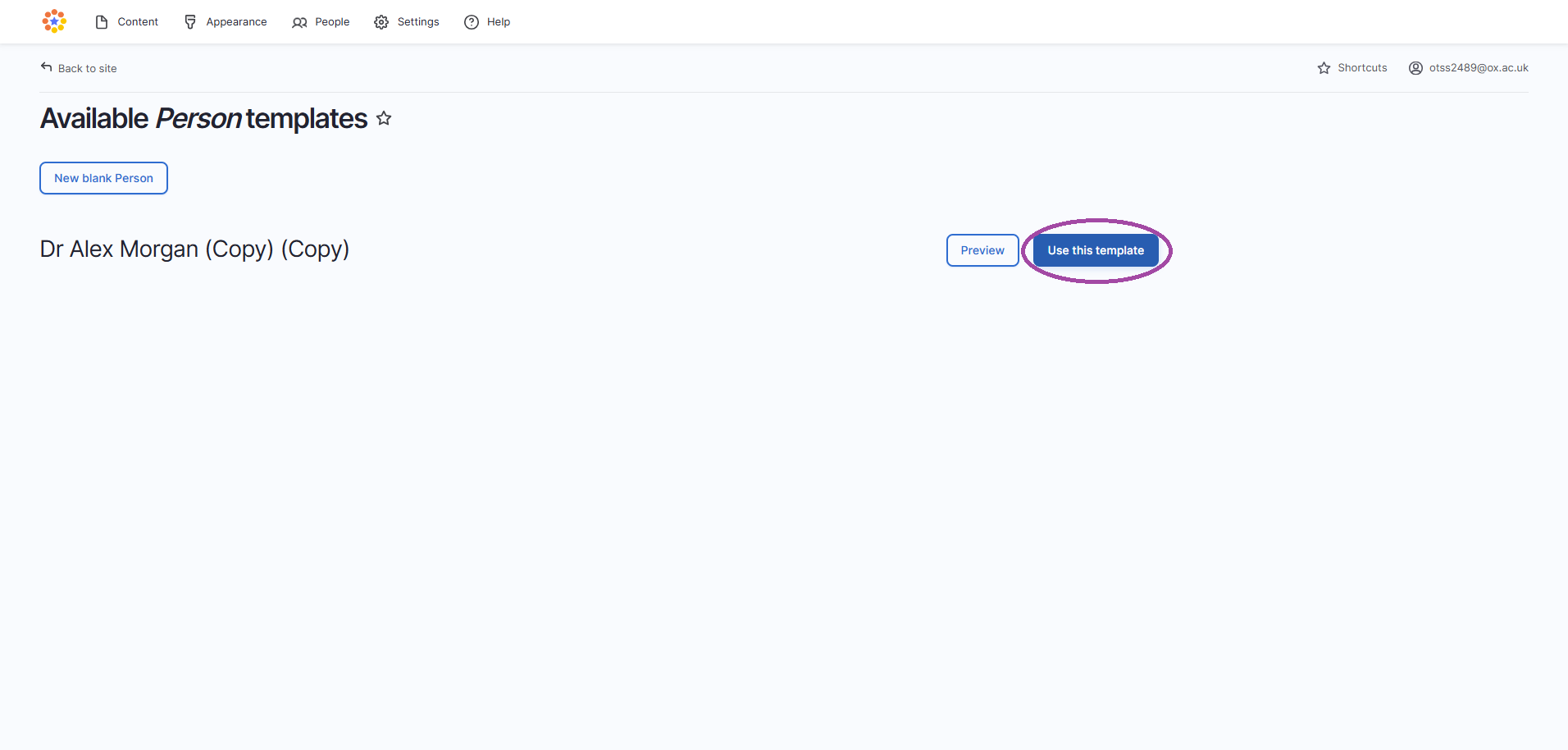
- Select your desired template and click 'use this template'