Adding alt text to images
When images are auto-migrated, they will carry over the alt text on an image from Mosaic to your new Fresco site. However if alt text was not added in Mosaic, it cannot be carried over to Fresco.
Adding alt text to images is essential for web accessibility because it ensures that people who cannot see images can still understand their meaning and purpose by using a screen reader to read out the alt text in place of an image.
Step-by-step guide
Step 1: checking whether images already have alt text
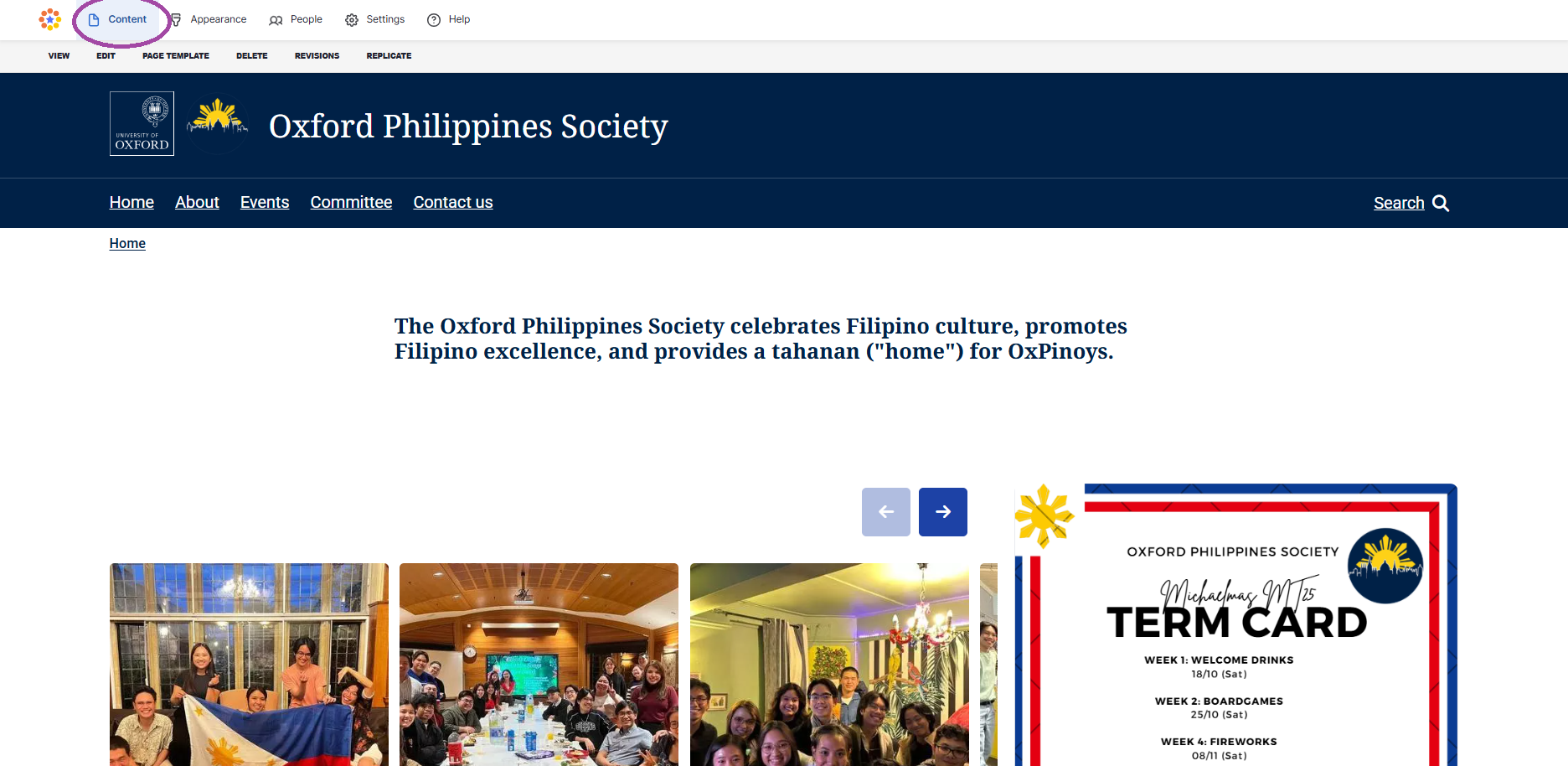
- Access your site
- Go to 'content'
Step 2: checking whether images already have alt text
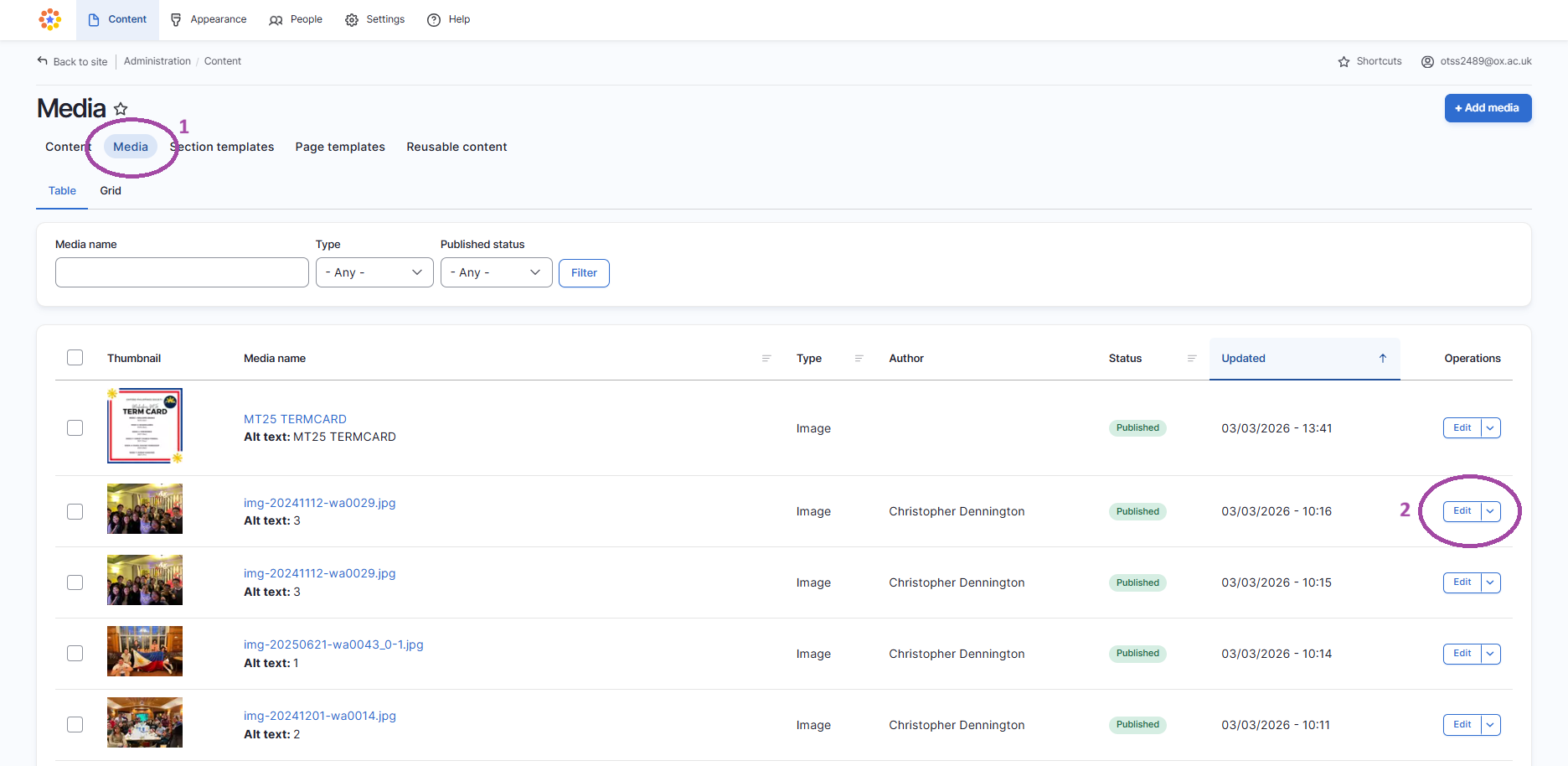
- Go to 'media'
- See 'alt text' - if alt text is missing or ambiguous, click 'edit' to update alt text
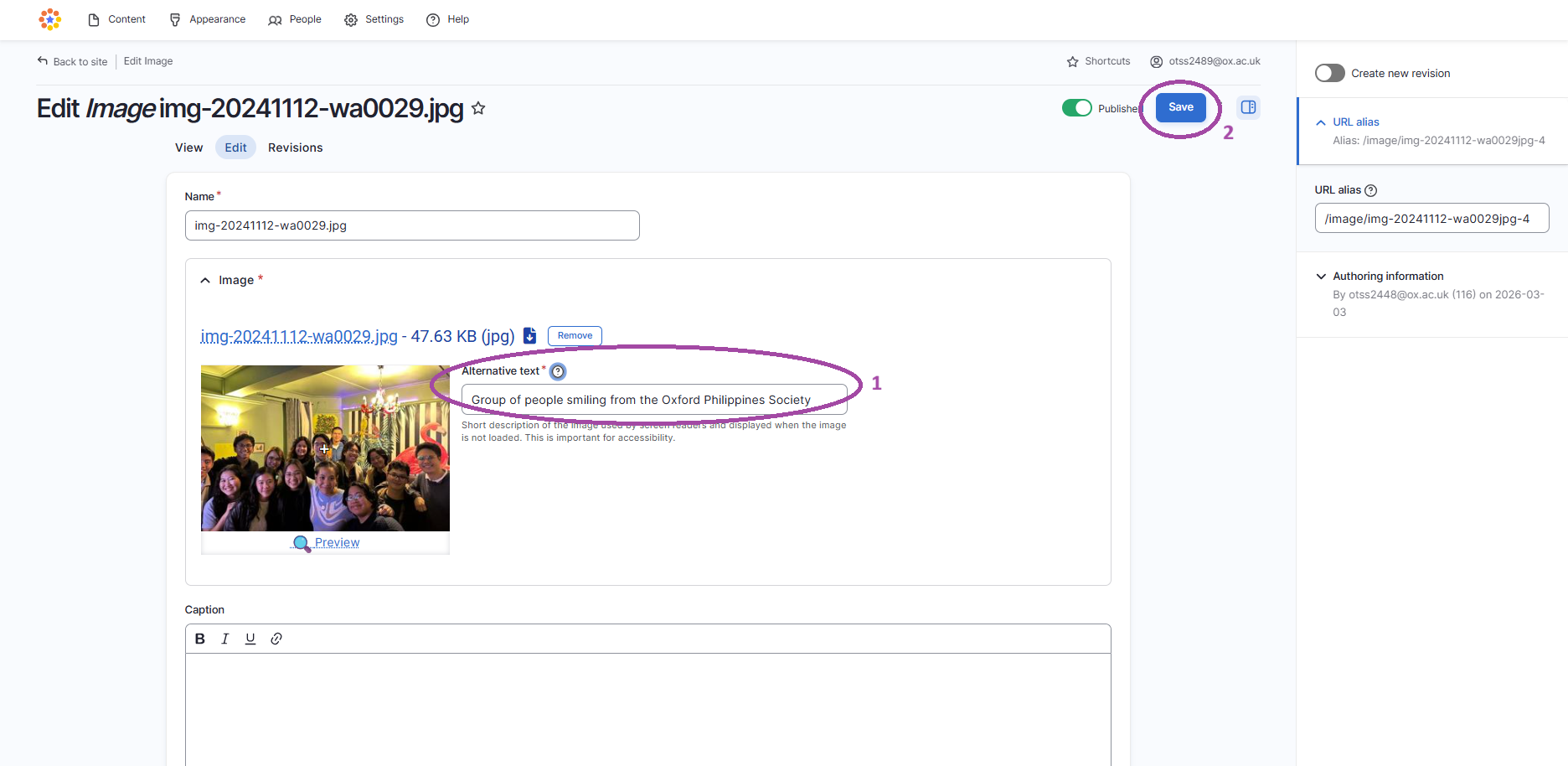
Step 3
- Update alt text in the 'Alternative text' field
- Click 'save'
Guidance on writing alt text:
- Be as concise as you can without sacrificing the meaning of the text
- Don't repeat text that is already available on the page
- Don't include 'this is a picture of' or 'image of' of similar introductions
- Mark as 'decorative' if this is the purpose of the image